

Ken Rennie
Well-Known Member
Much better not to create them but.................
This image has been specially produced to show halos. I have oversharpened with a wide radius and darkened the blues in HSL. This produces a somewhat odd sky colour but it is a good example for my purposes. Many people use darkened blues when they produce monochrome images. Chromatic abberation can also produce halos and they can get much more noticeable when you use HSL.
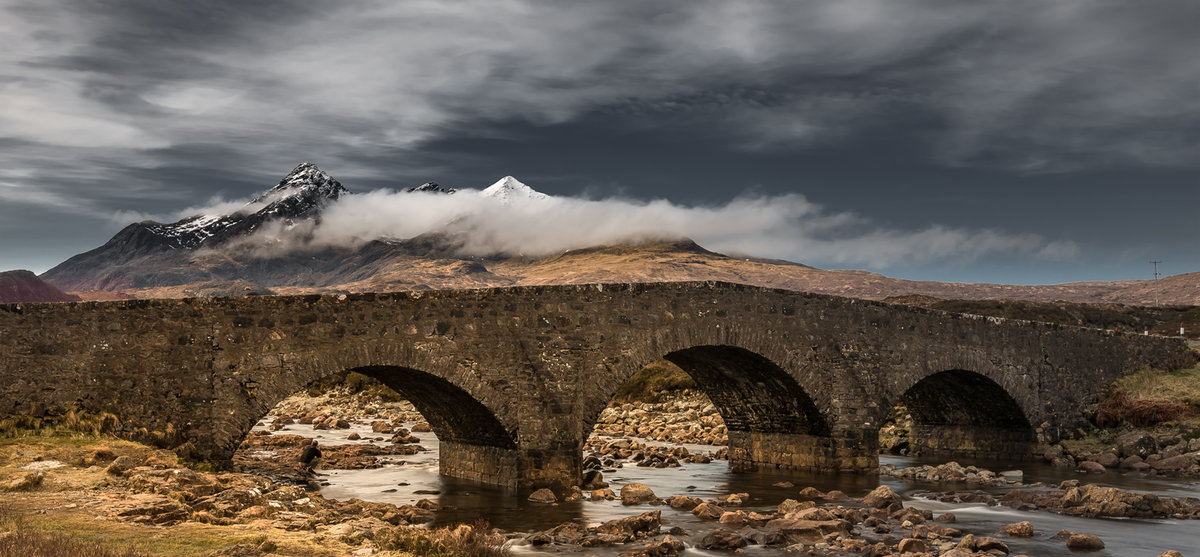
The halos can be seen at this size but to make it easier here is the right hand side

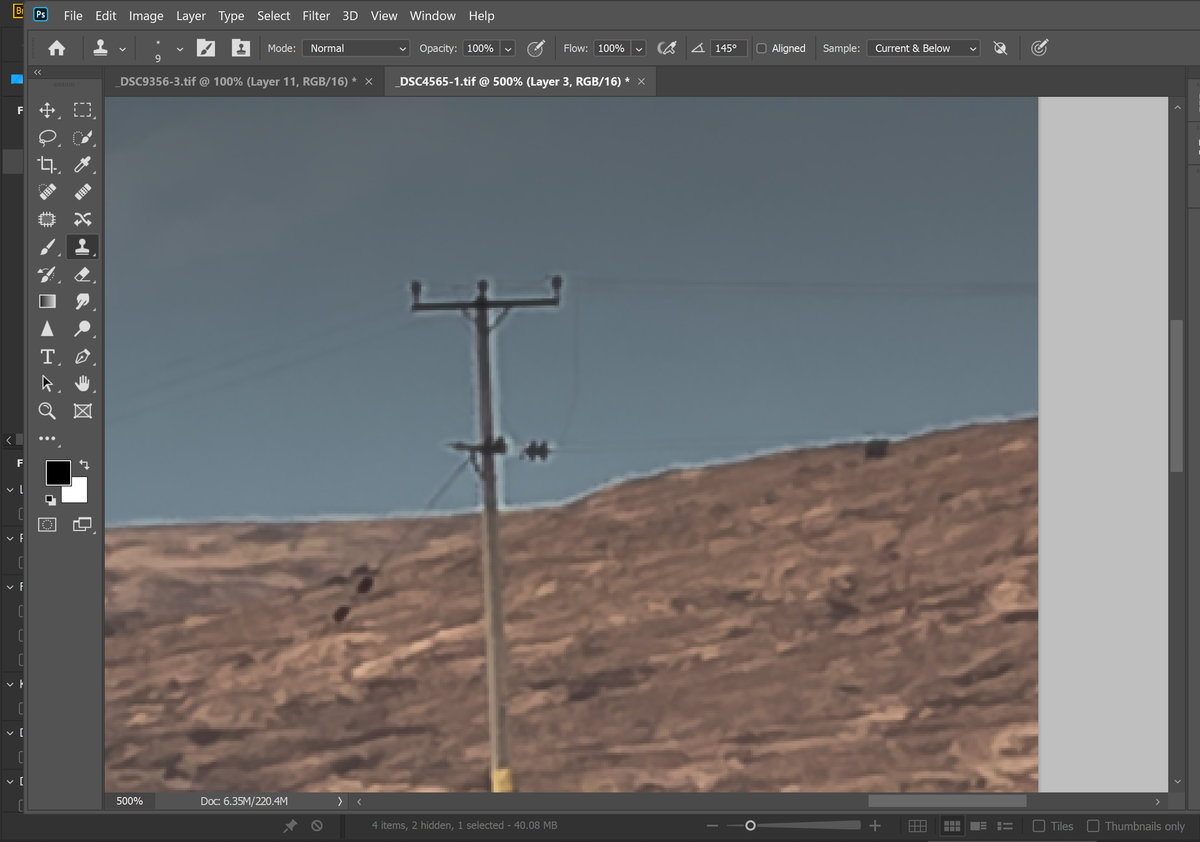
fairly easy to see now and quite complex around the electricity pole. Although theie are no pine tress here they also produce complex halos.
This is a print screen view
Here is the solution
New layer set to darken
select a soft clone stamp
Alt click on an area of sky just above the land and draw along the skyline.
With the complex area around the electricity pole use a larger clone stamp, select an area of sky to the right or left of the pole ( watch out to avoid the cables)
now draw over the pole area.
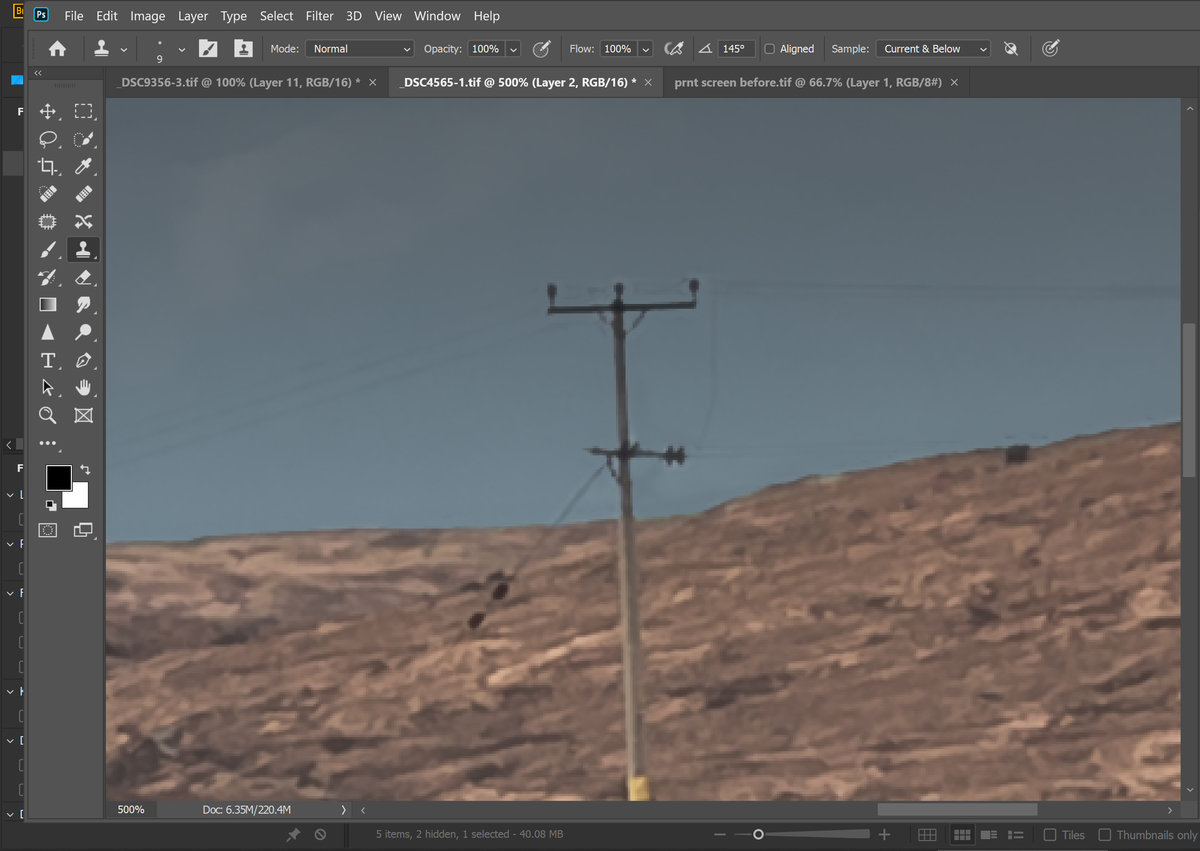
This is the rhs after

This image has been specially produced to show halos. I have oversharpened with a wide radius and darkened the blues in HSL. This produces a somewhat odd sky colour but it is a good example for my purposes. Many people use darkened blues when they produce monochrome images. Chromatic abberation can also produce halos and they can get much more noticeable when you use HSL.
The halos can be seen at this size but to make it easier here is the right hand side
fairly easy to see now and quite complex around the electricity pole. Although theie are no pine tress here they also produce complex halos.
This is a print screen view
Here is the solution
New layer set to darken
select a soft clone stamp
Alt click on an area of sky just above the land and draw along the skyline.
With the complex area around the electricity pole use a larger clone stamp, select an area of sky to the right or left of the pole ( watch out to avoid the cables)
now draw over the pole area.
This is the rhs after


